

FAQ - Qualtrics
Login
1. Go to https://chtl-bu.hkbu.edu.hk/qualtrics/.
2. Click the button "Login to Qualtrics".
3. Input your SSOid and password and click "Sign In".
Survey
You can create a brand new survey, or you can copy your survey from other surveys, a file, or the library.
Refer to this page for more information.
Refer to this page for more information.
To collaborate properly with other HKBU colleagues, you can search your colleagues' SSOid in the collaborate page, the format should be "SSOid (without "@hkbu.edu.hk")" + "#hkbuchtl"
If you cannot find your colleagues in the search results, ask them to log in HKBU Qualrics first.
Refer to this page for more information.
Please refer to this PDF.
Survey Question
There are two types of validation in Qualrics: Force response and Request response. By default, validations are turned off. To add validation to your question, navigate to the Response requirements section of the survey builder.
Refer to this page for more information.
Calendar question type is NOT recommanded to use as the time zone issue.
Instead, please follow the steps below:
Add a Text Entry Question:
In your survey, click Add new question.
Select the Text Entry question type.
Customize the Question:
Add clear instructions to guide respondents on how to input the date and time in the correct format.
Example question text:
"Please enter the date and time for your studio booking in the format: YYYY-MM-DD HH:MM (HKT). For example, 2024-01-01 14:30."
Enable Validation:
Click on the question to open the Validation Options.
Select Custom Validation and set up rules to ensure the input matches the desired format.
Example Validation Rule:
Use the "Matches Regex" condition to validate the input format.
For example: Regex: ^\d{4}-\d{2}-\d{2} \d{2}:\d{2}$
This ensures the input follows the format YYYY-MM-DD HH:MM.
If you want to sperapte date and time into two question, then you can use the way I have mentioned for record the date.
And the question of "time", the Validation Rule will be:
Use the "Matches Regex" condition to validate the input format.
For example: Regex: ^\d{2}:\d{2}$
Refer to this page for more information.
Refer to this page for more information.
Survey Response
Yes, and you can revert to the original responses any time.
Refer to this page for more information.
You can export (another word for “download”) all of your participants’ responses to all the questions in your survey. When you export data from Qualtrics, you can save data to your computer for analysis in another software.
Refer to this page for more information.
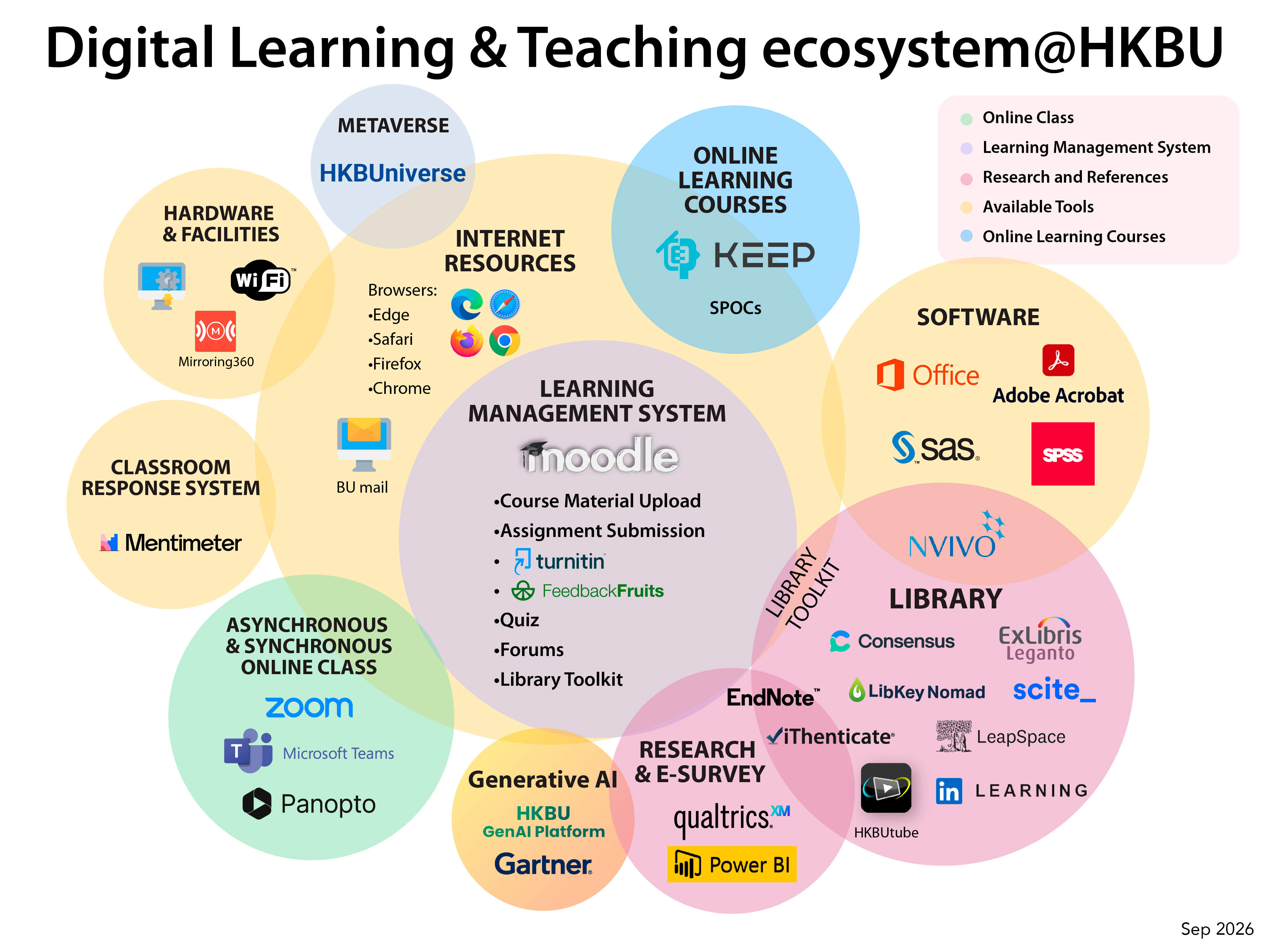
Digital Learning & Teaching ecosystem
Learn More

